Ask about this work.
Keep the selected contract, period and work breakdown structure in view as you work through the explanation.
Empower CLI / AI for EVM
Bring AI into the work your people do.
Empower CLI connects Encore Analytics Empower to a new generation of analyst workspaces and AI agents. Give people the evidence, assistance and permitted actions they need, in an experience built around their work.
VAR Studio brings that idea into variance analysis. Empower OData carries the same program data into Power BI and Excel.
01 / VAR Studio
In developmentWork through a variance explanation with AI beside the narrative. Ask a question, inspect the supporting Empower evidence, and consider a proposed revision in the same workspace.
Empower CLI supplies the connection to native narratives and workflow operations. The analyst reviews the changes; the control account manager keeps ownership of the explanation.
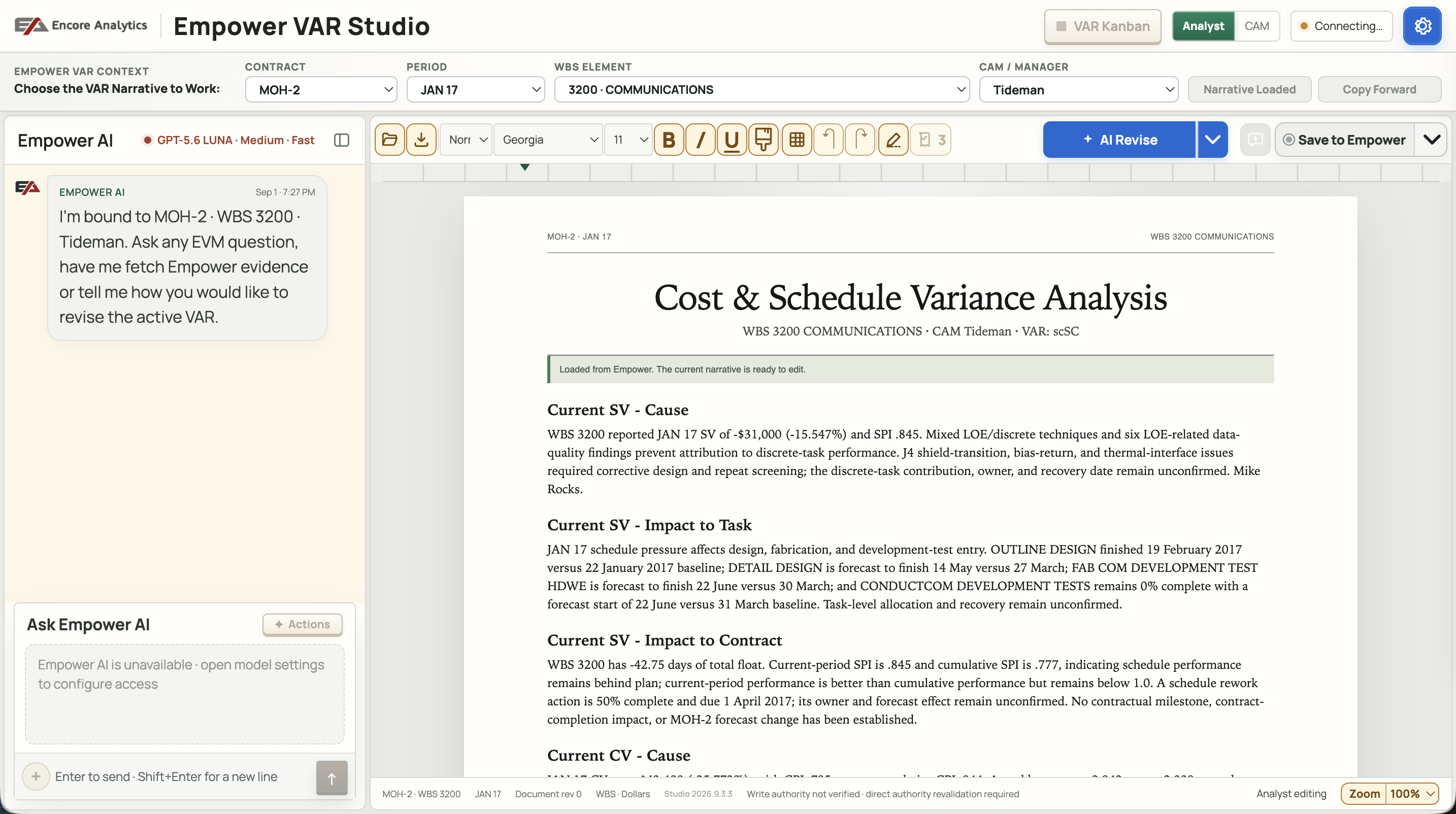
Keep the selected contract, period and work breakdown structure in view as you work through the explanation.
Consider section-by-section revisions. Accept what helps, reject what does not, and keep editing the document.
Accepting a suggestion edits the draft. Saving to Empower is a separate, confirmed native operation governed by your account and its workflow.
02 / Empower OData
Power BI & ExcelBuild a portfolio view, follow a program’s performance, or explore the next question in Excel. Empower OData makes Empower data available through a read-only feed powered by the CLI.
It is another user experience built on the same foundation: source access, known reporting context and results that can be checked against Empower.
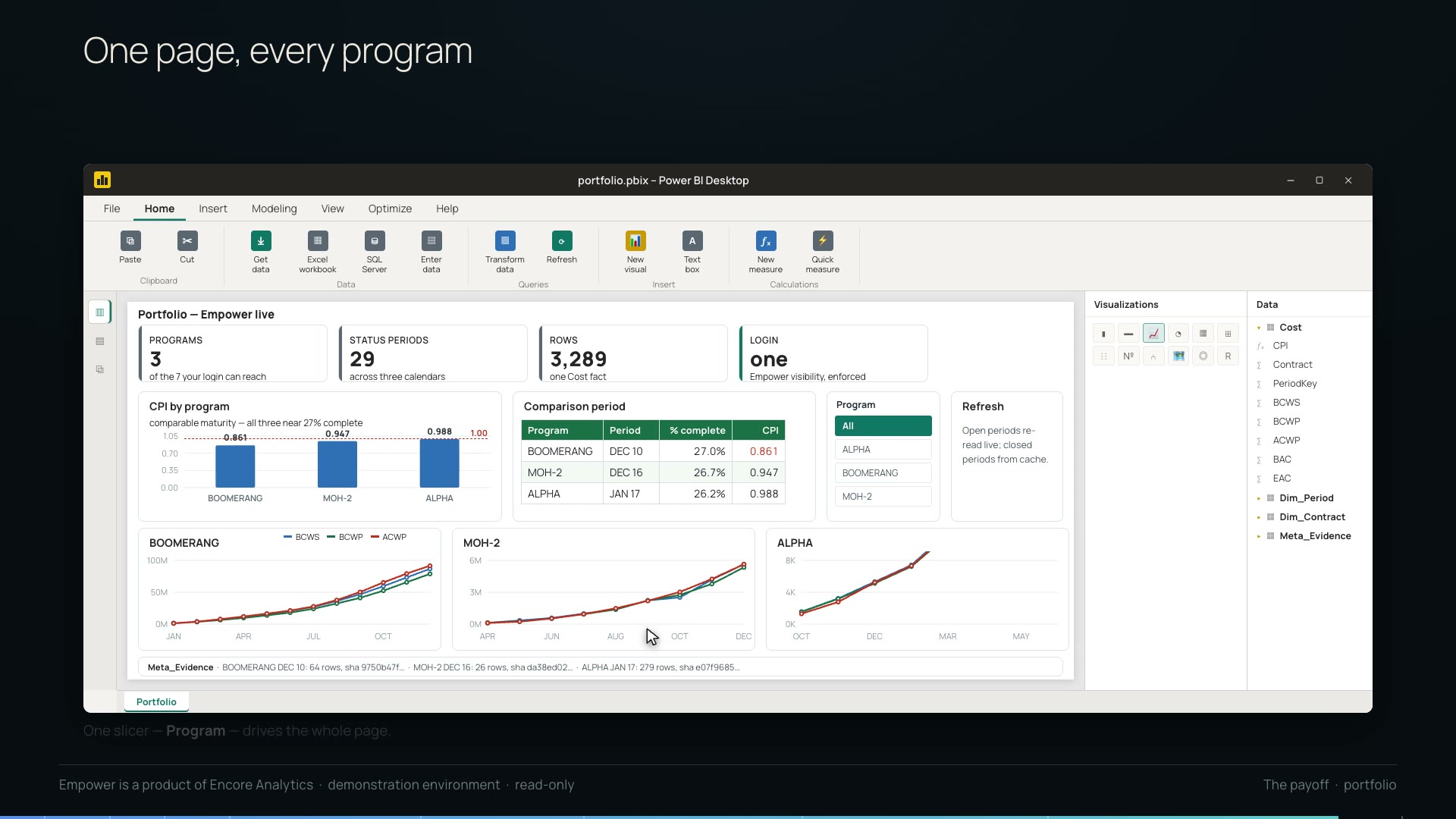
Checks compare published views with Empower’s native exports. Data reflects its last refresh; cost and schedule performance indices are calculated from summed components.
Explore Empower OData03 / From a question to useful work
An agentic experience can gather evidence, use it to propose the next step, and help a person carry the work forward. Empower CLI gives the application documented ways to reach Empower.
Discover the contracts, periods and artifacts available to the connected account.
Retrieve the relevant reports, charts, views or narrative for the question at hand.
The application’s AI can work from that evidence and show its proposed analysis or revision.
Review the proposal. Any official change follows the permitted native Empower workflow.
Empower remains the source of record. AI supports analysis; the team remains responsible for its conclusions and management decisions.
04 / Built on Empower CLI
Build the interface around your team’s work, with the source context and access rules carried through to the operations underneath.
Versioned JSON results, a typed application API and a packaged operating skill help builders give agents clear operations and interpretable results.
Retain contract, period and scope with retrieved evidence. Package related outputs and check later whether the files have changed.
Empower decides what the account can read and which Input actions are available. Writes require explicit confirmation; readback confirms the saved record.
Connect approved applications and AI providers under your deployment’s policies. Keep Empower credentials outside model prompts.
Use command-line automation, versioned JSON requests, the typed application API or the Model Context Protocol (MCP) integration. Each exposes a defined set of operations; they do not all expose every CLI capability.
The MCP server runs offline commands by default. An operator can enable live reads; Input writes remain unavailable through MCP. Authorized applications can use native Input through the CLI’s separate, confirmed write path.
Evidence package checks establish file integrity, not the correctness of an analytical conclusion. Your application’s AI provider and data-handling policies are separate from Empower access permissions.
Read the CLI documentation ↗Build with KUON
A workspace that helps a CAM explain a variance. An agent that brings back the evidence an analyst needs. A portfolio view built for a program leader.
Start with the experience your people need. Build from the program information and permitted actions already in Empower.
Windows · macOS · Linux. Empower access and a configured connection are required. Documentation requires sign-in.